
Fantasy Design
Asalam Aleikum
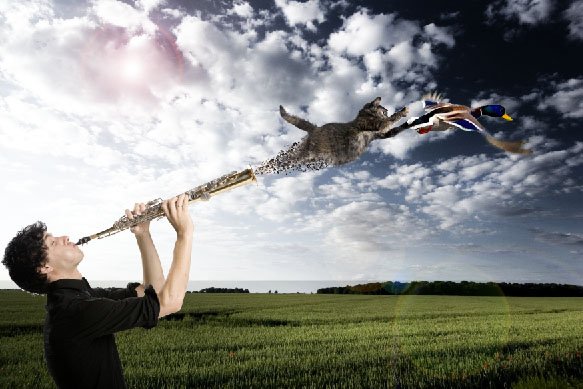
Me hu mudasir nazar or Urdututs ki tra say is tutorial me ap ko welcome kahta hu jesa k ap internet pe kafi images dekhte hai jo k fantasy image kehlati hai agar ap Google me type karay ge Fantasy Images ya wallpapers to ap bohat khoobsurat images nazar aye gi ap ne upar jo image dekhi hai aj hum woh design karay ge ap dekh sakte hai k ek shakhs Clarinet baja raha hai or us me say ek billi nikal kar apna shikar pakar rahi hai .....
bharte hai humaray tutorial ki janib sab say pehle humain 4 images ki zaroort hai jo k hum ne is image me use ki hai ap project files download kar lijiye .
Project Files:

files download karne k bad ap charo images ko photoshop me open karay or shutterstock_27446251.jpg
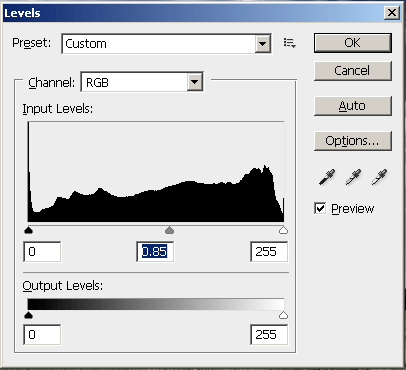
or background file ko drag kar k ek copy bana lijiye  ab ap Ctrl + L press kar k levels open kar lijiye or us pe yeh setting apply karay is bat ka dihan rahay k hum ne jo layer ki copy banai thi woh select honi chahye .
ab ap Rectangular Marquee Tool say image k jo clouds wala hisa hai us ko select karay of Ctrl+C press karne k bad Ctrl+v press kar dijiye us say humaray pas srif clouds ka ek layer ban jaye ga ,

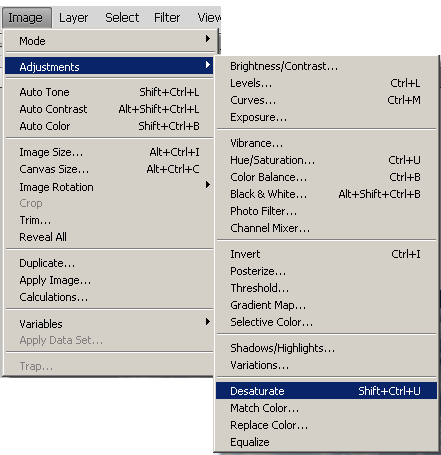
ab ap clouds wale layer ko select karte huway Image > Adjustments >Desaturate pe click kar k clouds ko black and white kar djiye
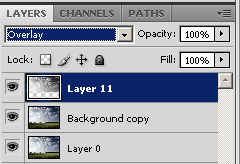
ab layer option say clouds wale layer ko select kar k ap layer option say normal say overlay pe set kar dijiye
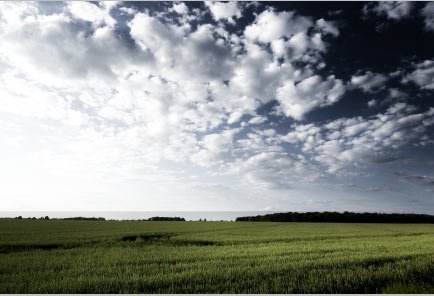
ab humari jo image hai woh kuch is trah ki nazar aye gi
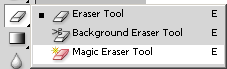
ab humain image shutterstock_1636335.jpg ki crop kar k humaray background pe lana hai us k liye hum
Magic Eraser Tool ka istemal karay ge
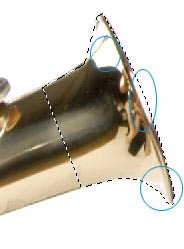
is say pehle k hum Eraser Tool use karay ap ne image me dekha hoga k Clarinet ka jo end ka hisa hai waha par shining ki wjah say color white ho chuka hai agar hum Eraser Tool ka istemal kar k usey Crop karne ki koshish karya ge to sath Clarinet k bhi kuch hisay delete ho jaye ge to hum us hisay ko Laso tool say select kar k ek new layer bana lete hai ta k humara wo hisa safe rahay .
ab dobara background image ko select kar k eraser tool say usay crop kar dijiye Eraser Tool humari image say white background completely remove nahi kar pata to ap un jgah ko bhi remove jaha Eraser tool nahi pohnch saka 
isi trah doosri images ko bhi ap crop kar k humaray background pe lay aye .
humari jo Cat image hai us ko ap crop kar k background pe lane k bad Ctrl+T press karay or us ko is trah say Rotate kar dijiye
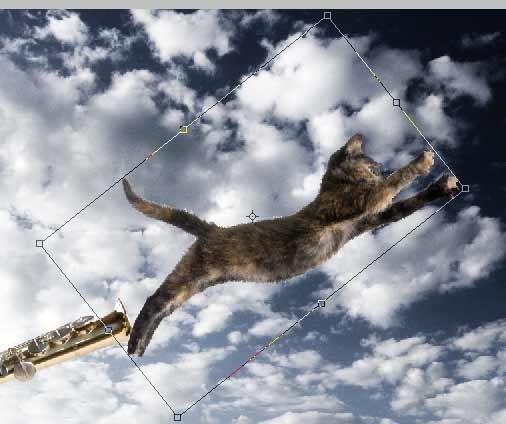
jo mene setting use ki hai ap woh bhi apply kar sakte hai

ab ap Filter me jaye or Liquify pe click karay make sure k Cat image hi select honi chahye .
in settings ko follow karay

ab Laso Tool say hum ne is Cat k chotay chotay tukre karne hai jesa k ap is image me dekh sakte hai

chote chote tukre copy karne k bad ap ko yeh result mile ga .
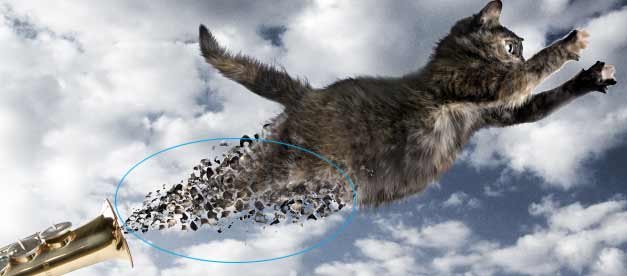
ab ap 4th image ko bhi crop kar k humaray background pe is trah say sett kar dijiye
or ab ek new layer bana kar usay black color say fill kar dijiye us k bad Filter> Rander> or lans flare
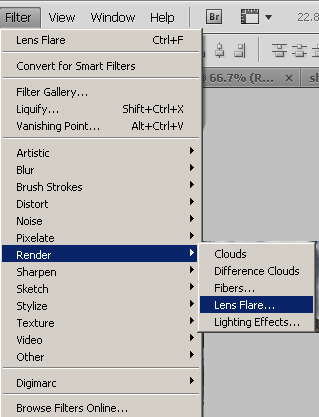
apply karne k bad ap layer option say normal to screen select kar dijiye or humari image ka final result yeh raha .
Download PSD
Questions and comments