
 Watch in Urdu
Lighting Effects

Asalam Aleikum
Urdu Tuts k is tutorial me ap ka suwagat hai is tutorials me lighting effects kis trah say apply kia jata hai woh hum design karay ge jo Tools is tutorial me hum isteman karay ge woh hai.
- Pen Tool
- Brush Tool
- more
Project files

Step 1:
Adobe Photoshop me (young_girl_dancing__1920x1200.jpg) karne k bad Pen Tool  select
karay or Tools Options me is setting ko follow karay .
tamam settings check karne k bad humain apni image pe lighting effects k liye pen tool say lins banani hai jesa k ap upar image me dekh chukay hai is say pehle k hum apne tutorial ki janib bharay me ap ko Pen Tool k baray me thora sa batata chalu Pen Tool Photoshop k Behtreen Tools me say ek hai .agar ap Pen Tool pe right click karay ge to ap ko 5 Tools nazar aye ge .

- Pen Tool
- Freeform Pen Tool
- Add Anchor Point Tool
- Delete Anchor Point Tool
- Convert Point Tool
ab hum bharte hai humaray tutorial ki traf PenTool select kar k ap image pe is trah say lines banan start karay .

jis trah ap dekh rahay hai hum ne is selection me 5 points banaye hai 1st point bana kar 2nd point pe click karne k bad ap click ko pakar kar move karay ge to ap ko yeh effect mile ga isi trah ap ap poori image pe yeh selection kar lijiye

selection complete karne k bad ap Brush Tool  select karay or brush size 9 px rakhay make sure k brush hard hona chahye. or layers penal me is icon pe click kar k
 ek new layer bananne k bad ab image pe kisi bhi jgah right click karay Pen Tool Select hona chahye or stroke path pe click kar dijiye

Stroke path pe click karne k bad ap k screen pe yeh option aye ga 
is option me is bat ka dihan rakhiye ga k brush select hona chahye or Simulate Pressure pe tik laga hona chahye ab ap ok pe click kar dijiye ab ap image pe dekhay ge k ek white line ban gaye hogi ab ap dobara right click kar k delete path pe click kar dijiye

path delete karne k bad humari image kuch is trah ki nazar aye gi

ab ap Eraser Tool  select kar k hum ne jo Pen Tool say lines banaye hai un ko is trah say remove karay ta k woh humaray image k charo taraf ghoomti hui light ki trah nazar aye

lighting layer pe right click kar k ap blending option pe click karay
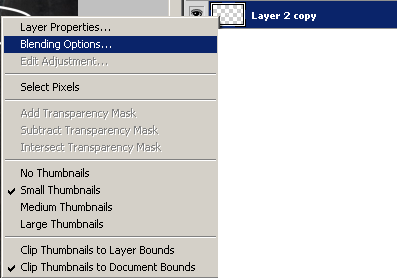
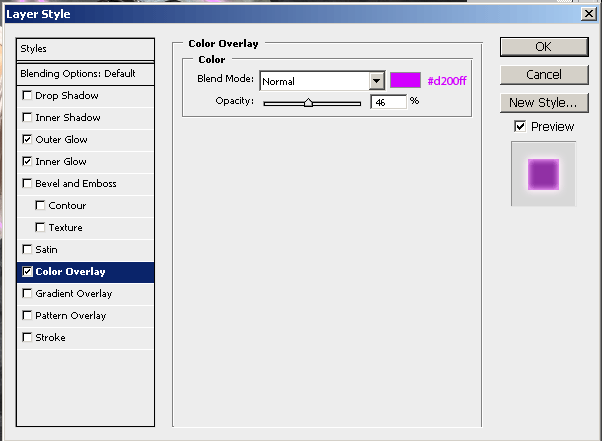
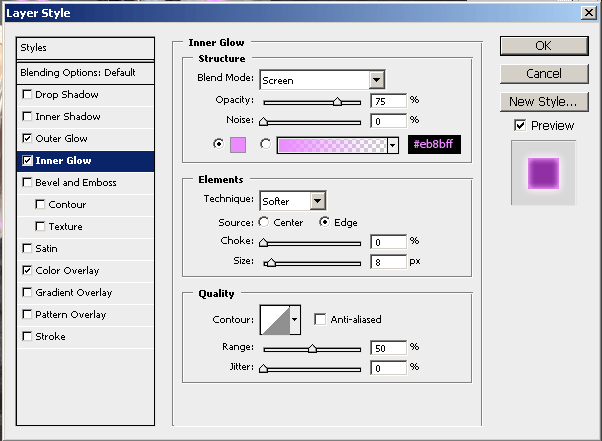
or in steps ko follow karte huway color or out glow wagera apply karay
Color Overlay
Inner Glow
Outer Glow

yeh tamam styles apply karne k bad humari image kuch is trah dikhay gi

isi trah ek or light bana kar us pe ap koi bhi color apply kar dijiye

shurwat me jo hum ne project files download ki this un me ( Music Brushes.abr ) name say ek brush hoga usay photoshop me load karay
us k liye ap brush tool pe click karay or uper tools option me brush option pe click kar k brush load kar dijiye

brush load karne k bad ap brush number 186 ko slecet karay

ab brush presets me ja kar in settings ko follow karay . agar ap k pas brush presets show nahi ho raha hai to ap windows menu me jaye or brushes pe click kar dijiye


tamam settings apply karne k bad ap is brush ko image pe apply kar dijiye .

isi tarike ko use kar k ap apni or apne dosto ki images ko alag alag effects de saktay hai ..
Download Psd
Note: Share this tutorial on your Facebook and Google plus wall
2 comments