
How to Make Underwater Scene in Photoshop
Hello Guys
In this Tutorial i will show you how to make a underwater scene in Adobe Photoshop CS6.
Before we start we need some stock photos for our project, Please download below images.

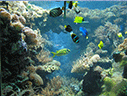
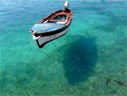
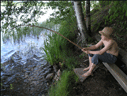
After successfully download all required images now we are ready to start designing our underwater scene in Photoshop.
Step 1: Open Photoshop and create new page with 1366 of width and 786 height and fill it with this #37a5cb color.
Now drag 2 under water images 1: PICT0094.jpg % 2: PICT0098.jpg set it align and remove hard edges using soft eraser tool. like image shown below.

Now marge both underwater layers then create a new layer and fill it with the color of #6ac1df and set it to overlay. now marge both layers make a duplicate layer by pressing CTRL + J and set copy layer to color burn. after that our image looks like this.

Step 2: in this step we will set top water layer, open image (1411079_23383411,jpg) in photoshop then press Ctrl + U and Set Hue Saturation like the image Shown Below.

Now drag this image into our main page and press Ctrl + T After resize Right Click on image make sure you are on Free Transform and select distort and set it like this.

Step : 3 open boat image and crop it after cropping drag it in to our main page Resize it by pressing Ctrl + T , and Set it Like this

Step 4: in this step we will setup sky click here to download cloud brushes . and apply like this.

We must make boat looks like into water for that select rectangle marquee tool and make selection from the edge of water like the image shown below
after selection press Ctrl + X for cut Ctrl + V for paste , after paste new layer appears with selected area . now set the opacity to 50% .

Step 5: Now crop Boy image and set it on boat like this.

Create a new layer and drop it to down of boy layer then apply some shadow using brush tool.
now select Pen tool and Create some lines that to be a fishing thread like this.

Now our image looks like this

now apply some other things like birds and fishes if you want in this tutorial i am going to add birds only ,

Step 6: Time to add final touchup make a two new layers and fill it with these colors,
Layer One: #00885b (After fill Layer one set blending option to Subtract and change opacity to 22%)
Layer Two: #0083eb (Same thing to Layer Two set blending option to Divide and change opacity to 19%)
Here is the final Result of our Image.

3 comments